The Panic of a Locked Computer
Imagine sitting in front of your computer, ready to tackle the day's tasks, only to be greeted by a login screen that refuses to recognize your password. The frustration and sense of urgency that follows can be overwhelming, especially if you have critical work or personal files stored on your device. This is where knowing how to reset your Windows 10 password with Utilman becomes a lifesaver. In this guide, we'll walk you through a simple, effective method to regain access to your locked computer, ensuring you can get back to your daily activities without significant downtime.
The Utilman.exe trick is a lesser-known but powerful technique for resetting your Windows 10 password. It involves replacing the Utility Manager (Utilman.exe) with the Command Prompt (cmd.exe), allowing you to access your computer and change the password without needing the current one. This method is particularly useful when other password reset methods fail or are not available.
Understanding Utilman and Its Role
Before diving into the process, it's essential to understand what Utilman.exe is. The Utility Manager is a feature in Windows designed to provide access to various system utilities and tools for users with disabilities. By default, it can be accessed by pressing the Windows key + U. However, by leveraging this executable, we can manipulate it to launch the Command Prompt instead, thereby gaining access to the system without a password.
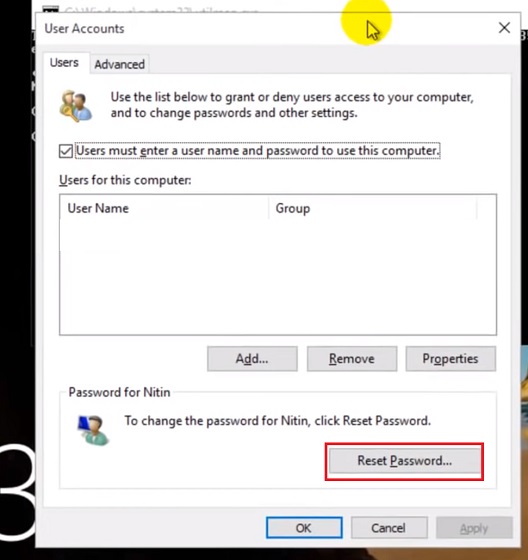
This technique highlights the importance of exploring all available options when faced with a locked computer. The ability to reset Windows 10 password with Utilman offers a straightforward, efficient solution that can be a game-changer in situations where time is of the essence.
A Step-by-Step Guide to Resetting Your Password with Utilman
- First, you'll need a Windows installation media (USB or DVD) to boot your computer. If you don't have one, you can create it on another Windows PC.
- Boot your locked computer from the installation media. You might need to change the boot order in your BIOS settings to prioritize the USB or DVD drive.
- Once booted, select your language preferences and click "Next," then choose "Repair your computer" to access the recovery environment.
- Navigate to the Command Prompt by selecting "Troubleshoot"> "Advanced options"> "Command Prompt."
- In the Command Prompt, type the following command to replace Utilman.exe with cmd.exe:
move c:\windows\system32\Utilman.exe c:\windows\system32\Utilman.exe.bak, then press Enter. - Next, type
copy c:\windows\system32\cmd.exe c:\windows\system32\Utilman.exeand press Enter to replace Utilman.exe with cmd.exe. - Restart your computer normally (not from the installation media).
- At the login screen, press the Windows key + U to open the Command Prompt (now masquerading as Utilman).
- Type
net userto list all user accounts, thennet user [username] [newpassword]to reset the password for your account.
Resetting your Windows 10 password with Utilman is a straightforward process that requires careful execution of the steps outlined above. This method underscores the versatility of Windows when it comes to troubleshooting and recovery, offering users multiple pathways to resolve issues like a forgotten password.
- 📌 Crack The Code: Converting Won To USD Made Easy With This Practical Guide
- 📌 Dinar Detectives Shocking Update: Uncovering The Truth Behind The Iraqi Dinar Market
- 📌 Unlocking Efficient Collaboration: Mastering AdventHealth SharePoint Login
- 📌 10 Things You Didn't Know About Breeze Online (Number 7 Will Surprise You!)
Prevention is the Best Approach
While knowing how to reset your Windows 10 password with Utilman is incredibly useful, preventing such situations in the first place is even better. Regularly backing up your important files, keeping your Windows and software updated, and using strong, unique passwords can go a long way in securing your digital life. Furthermore, enabling password reset options through your Microsoft account or setting up a local administrator account for emergency access can provide additional safety nets.
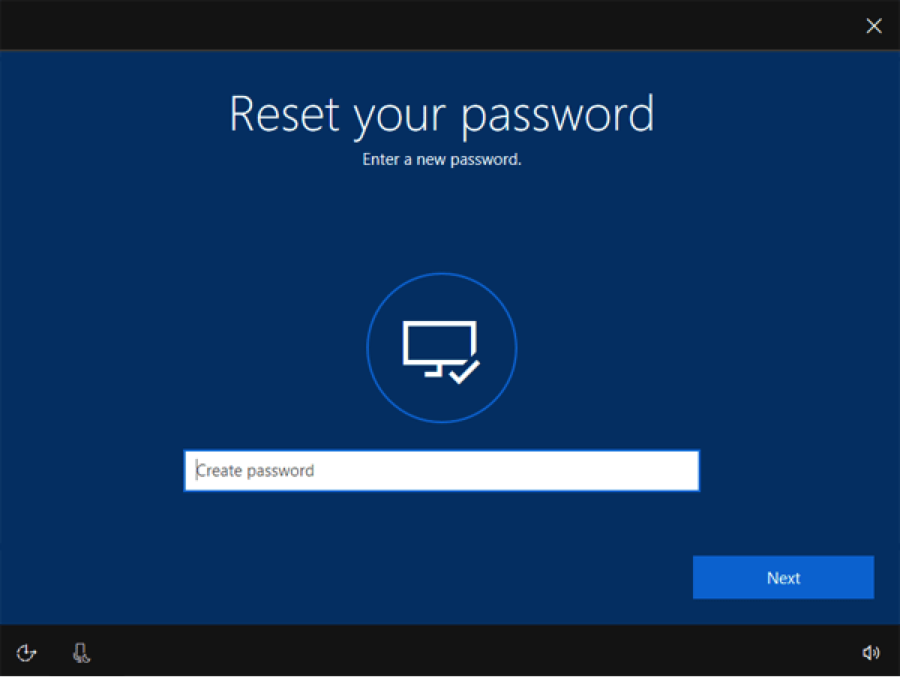
In conclusion, the Utilman.exe trick offers a reliable method for resetting your Windows 10 password, making it an indispensable tool in your troubleshooting arsenal. By following the steps outlined in this guide, you can regain access to your locked computer efficiently, minimizing downtime and getting back to your tasks with ease.
Conclusion: Empowering Yourself with Utilman
Resetting your Windows 10 password with Utilman is more than just a troubleshooting technique; it's about empowering yourself with the knowledge to overcome common obstacles in Windows. This guide has walked you through a simple, effective method to reset your password, highlighting the flexibility and resilience of Windows when faced with challenges. Whether you're a casual user or an IT professional, understanding and mastering techniques like this can significantly enhance your computing experience, ensuring that you remain in control, even when unforeseen issues arise.
As you continue to navigate the digital world, remember that knowledge is your best ally. By staying informed about the various tools and methods available, such as the Utilman trick for resetting your Windows 10 password, you equip yourself with the skills necessary to tackle problems head-on, ensuring a smoother, more secure computing experience.
To explore further academic studies and guidelines, refer to search results on Official Academic & Government Portals.
![How to Perform Windows 10 Password Reset [Updated] | Beebom](https://i2.wp.com/beebom.com/wp-content/uploads/2019/07/Windows-10-Password-Reset-If-Everything-Fails-11.jpg)


